
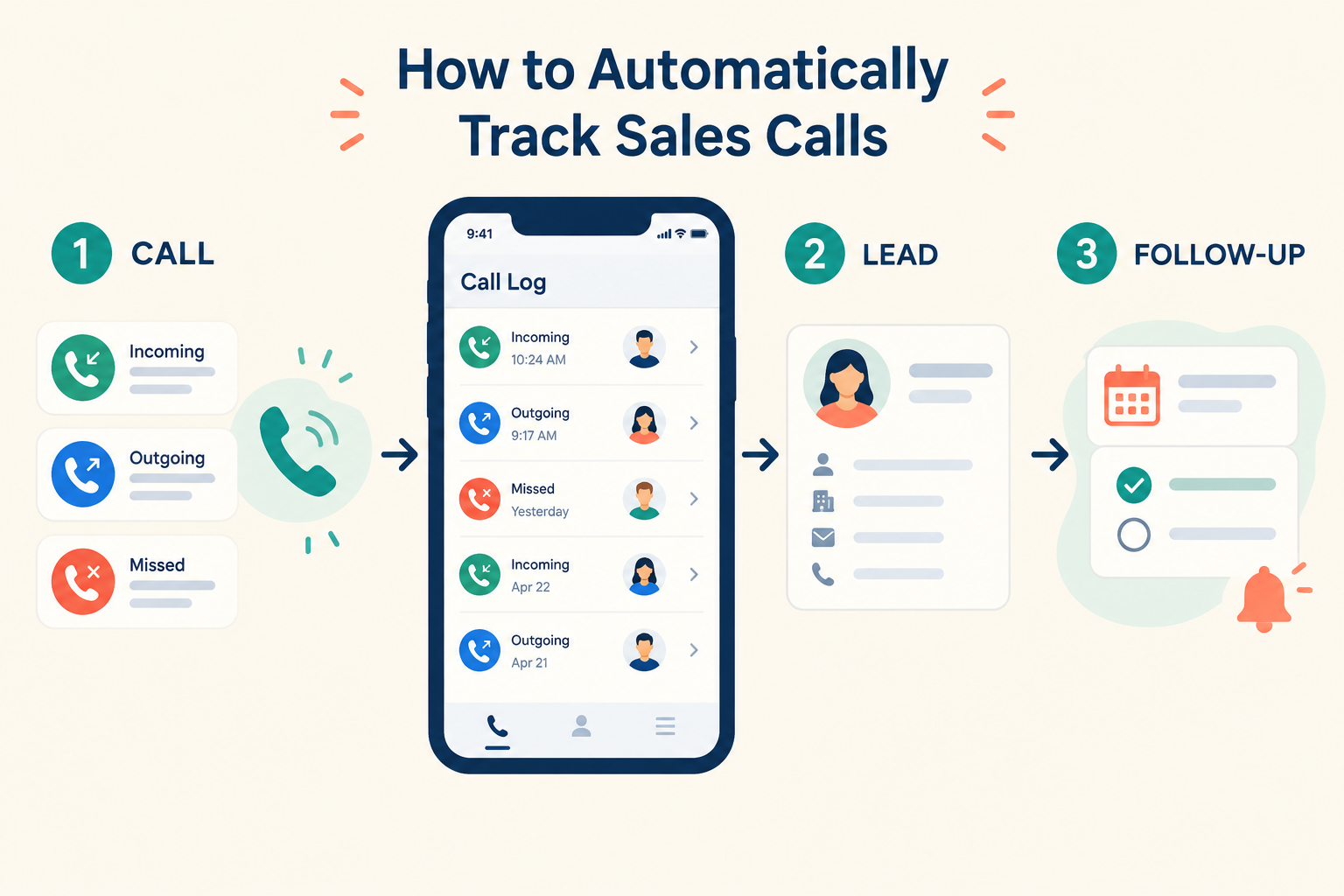
A sales rep calls a new lead, gets no answer, and plans to try again later. If that call isn’t logged, the rest of the team may not know an attempt was made—and the callback can be forgotten.
Automatic call tracking records sales calls and connects them to lead records, reducing the need for reps to log each call manually. This guide explains what it can capture, how to put it to work, and what to check before relying on it.

What Is Automatic Sales Call Tracking?
Automatic sales call tracking records call activity from a supported phone or calling system and adds it to a CRM. Depending on the product and setup, a call record may include:
- Whether the call was incoming, outgoing or missed
- The phone number and call time
- The call’s duration
- The lead the number matches
Call tracking is not the same as call recording. A CRM may log call details without recording audio.
How Does Automatic Call Tracking Work?
A supported app detects calls on the device and syncs call details to the CRM. The CRM then attempts to match the phone number to a lead record.
When a call is matched, its activity appears in the lead’s history. The salesperson can add notes about the conversation and record the agreed next step—details that call metadata alone cannot explain.
For example, a log can show that a call was answered and how long it lasted. A note can explain that the prospect asked for a revised quote and agreed to review it on Friday.
How to Set Up Automatic Sales Call Tracking
The exact steps depend on the CRM, phone and app. Use this checklist to set up and test the workflow:
- Confirm device support. Check which operating systems and app versions support automatic call syncing. Don’t assume a mobile website or browser-installed app has the same access as a native app.
- Install and sign in to the supported app. Use the account connected to your CRM workspace.
- Review the app’s requested permissions. Call syncing may depend on device permissions. Grant only the access needed for the feature and review your organization’s device and privacy policies.
- Check lead phone numbers. Accurate numbers help the CRM match call activity to the right lead.
- Make a test call. Use a test lead and confirm that the call appears on the correct record with the expected direction, time and duration.
- Test an unanswered call. Verify that it appears as an attempt and that any callback task remains visible.
- Set a team routine. After an answered call, add a brief note and create the next follow-up if the lead needs one.
What Should Your Team Do After a Call?
Automatic logging captures activity, but it doesn’t replace the salesperson’s judgment. After a meaningful conversation, add a concise note that answers:
- What does the prospect need?
- What did the salesperson promise?
- What is the next step, and when is it due?
For an unanswered call, keep the callback visible. A missed call is an attempt—not proof that the prospect was contacted.
How Ridhzo Automatically Tracks Sales Calls
Ridhzo’s native Android app automatically syncs incoming, outgoing and missed calls, including timestamps and talk duration. It matches call activity to leads using phone numbers.
Ridhzo also handles follow-ups differently depending on the call outcome:
- Answered calls: Matching pending follow-ups for that lead are marked completed.
- Unanswered or missed calls: The attempt is logged, while the follow-up remains open.
A completed call does not necessarily mean the sales opportunity is complete. If the prospect asks for a quote or a later callback, the rep should add that next action.
Ridhzo’s caller ID can also display a matched lead’s name and details when the lead calls. Automatic device call syncing is documented for the native Android app; don’t assume the browser-installable app on iPhone offers the same call-log access.
What to Check Before Relying on Automatic Call Tracking
- Device compatibility: Confirm the feature works on the phones your team actually uses.
- Lead matching: Test different number formats and check that calls link to the right records.
- Call details: Make sure the logged direction, time and duration are useful for your workflow.
- Follow-up behavior: Understand what happens to reminders after answered and unanswered calls.
- Privacy and permissions: Tell staff what activity is synced, why it is needed and who can view it. Review your organization’s requirements, especially if staff use personal phones.
- Call recording: Check separately whether audio recording is supported and what consent or privacy requirements apply. Call logging does not mean audio is recorded.
Frequently Asked Questions
Can a CRM automatically log sales calls?
Yes, if the CRM supports call syncing on the device or calling system your team uses. Support and the details captured vary by product and platform.
Does automatic call tracking record conversations?
Not necessarily. Call tracking commonly logs details such as direction, time and duration. Audio recording is a separate capability.
Does a missed call count as contacting a lead?
It counts as a call attempt, but not as a two-way conversation. Keep a callback or other next step visible.
Can Ridhzo automatically track calls on iPhone?
Ridhzo’s automatic device call syncing is documented for its native Android app. Its browser-installable app for iPhone should not be assumed to have the same call-log access.
What should a salesperson add after an automatically logged call?
Add the useful context the log cannot capture: the prospect’s needs, what was agreed and the next action with a due date.
Turn Call Logs Into Useful Follow-Ups
Automatic call tracking can reduce manual logging and make sales activity easier to review. It works best when each answered conversation gets a short note and every promised next step has an owner and due date.
If your team uses Android, test Ridhzo’s call syncing with a sample lead. Confirm the call matches correctly, then check how answered and missed calls affect follow-ups.