
Facebook and Instagram Lead Ads are one of the fastest ways to generate enquiries. A prospect sees your ad, taps it, and submits a pre-filled Instant Form — name, email and phone come straight from their profile, often in two taps.
The problem is rarely the ads. It’s what happens after submission. Leads sit in Ads Manager until someone downloads them, get shared as screenshots, or drift into personal WhatsApp chats where no one owns the follow-up.
A Facebook Lead Ads CRM closes that gap. This guide explains what it is, why it matters, and how to set it up end to end.
What Is a Facebook Lead Ads CRM?
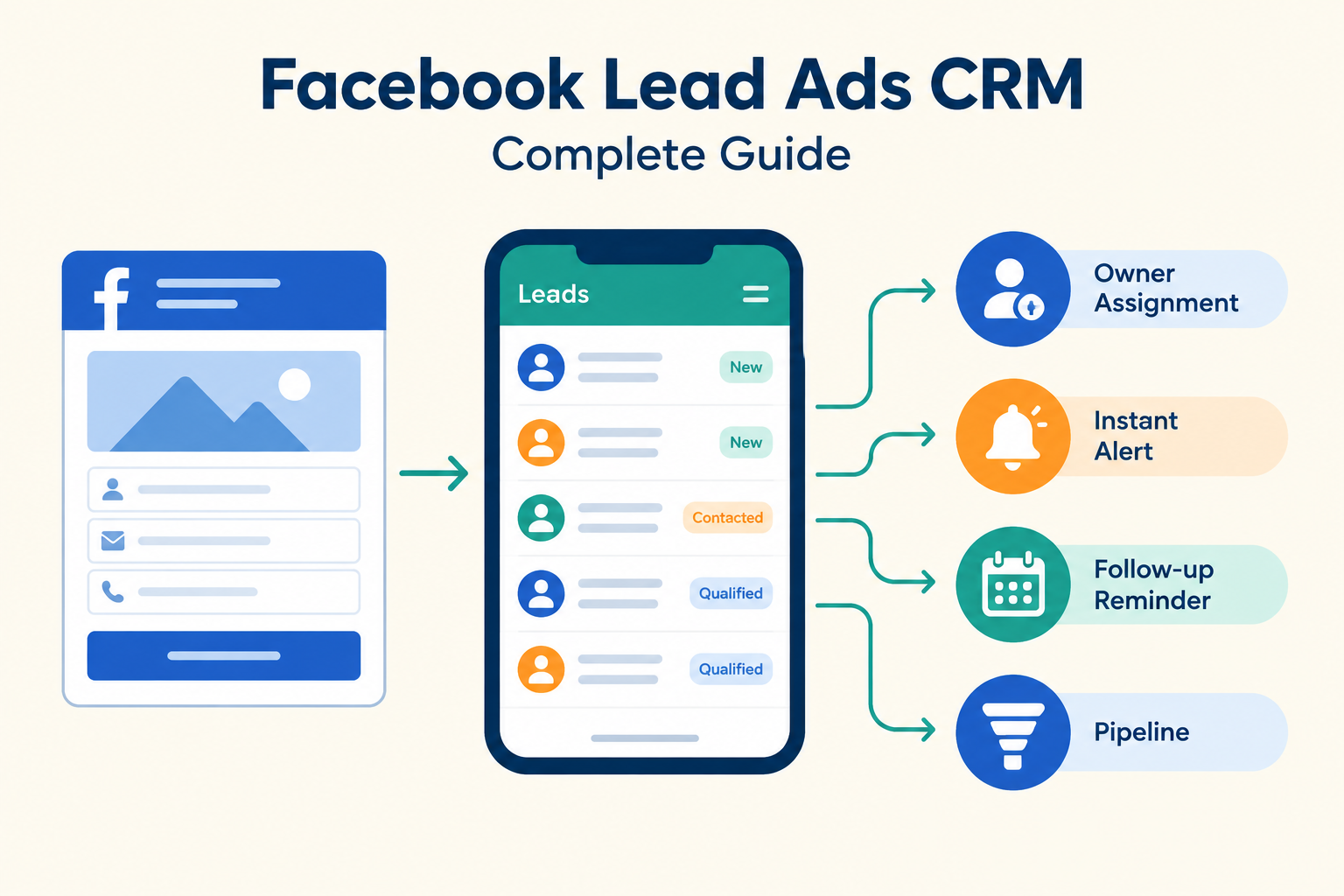
A Facebook Lead Ads CRM is a customer relationship management tool connected directly to your Facebook (and Instagram) lead forms. Instead of exporting leads manually, the CRM receives each submission automatically — usually within seconds — and turns it into a managed lead record with:
- Contact details (name, phone, email)
- The answers the person gave in the form
- The campaign, ad set, ad and form the lead came from
- An owner, a pipeline stage and a follow-up plan
Without this connection, lead handling depends on someone remembering to download, copy and distribute enquiries. With it, every lead lands in one shared system the moment it arrives.
Why Manual Downloads Cause Lost Leads
If your team still downloads leads from Ads Manager, three problems show up repeatedly:
- Delay. A lead submitted at 2 pm might not be seen until a CSV export the next morning. Prospects who don’t hear back quickly often move on — speed-to-lead matters, and the time between enquiry and first contact attempt is where most of it is lost. (What is speed-to-lead?)
- No ownership. A spreadsheet shared with the team doesn’t say who calls whom. Some leads get contacted twice; others not at all.
- Lost context. Form answers — the property type they asked about, the course they’re interested in, their budget — get separated from the contact as columns get reshaped or deleted.
The fix isn’t more discipline around the spreadsheet. It’s removing the download step entirely. (How to manage leads without Excel or Google Sheets)
How a Facebook Lead Ads CRM Works
The flow has four parts:
1. Capture
Connect your Facebook Page to the CRM using Facebook login, then select which forms should feed your lead list. Once connected, new submissions arrive automatically — no exports, no third-party connectors.
Choose your forms carefully. Ad accounts often run multiple forms (some for marketing, some for jobs or suppliers), so use form-level filtering to import only the ones that matter. If the filter is empty, every form on the Page is captured.
Already have past enquiries sitting in Meta? A backfill option can sync older leads — for example the last 30 days — into the CRM, with duplicates automatically detected by email, phone or lead ID.
2. Assign
Every lead gets one owner. Good CRMs support routing rules so this doesn’t rely on a manager: round-robin (even distribution across reps), capacity-based routing (spare capacity gets the new lead), or team rules (certain sources or form types go to certain teams).
For agencies managing multiple branches: some tools, including Ridhzo, allow one Facebook Page to be connected across multiple workspaces, with incoming leads copied to all of them — useful for franchise or regional dealer setups.
3. Respond
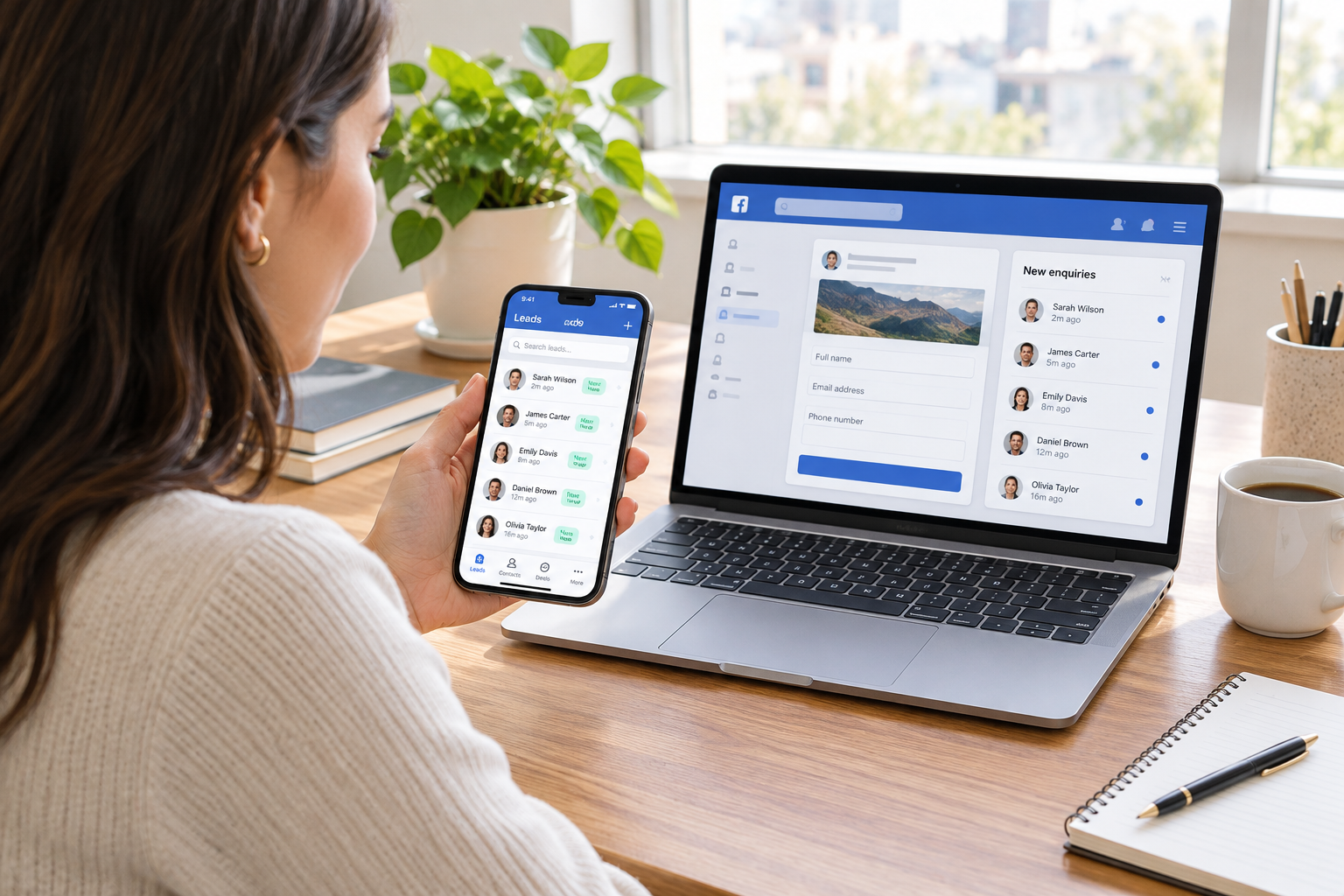
The assigned rep gets a mobile notification, opens the lead record, and sees the full form submission — not just a phone number, but what the person actually asked for.
From the record, one-tap actions open WhatsApp, dial the number, or send an email. The first response can reference the form answers directly:
Hi Priya, thanks for your enquiry about our weekend digital marketing course. You mentioned you prefer online classes — would you like the schedule and fee details?
4. Follow Up and Track
After the conversation, the rep saves a note, schedules a dated follow-up, and moves the lead along your pipeline — for example:
New → Contacted → Qualified → Meeting/Quote → Decision Pending → Won/LostManagers then review dashboards by source, owner and stage: which enquiries are waiting, which follow-ups are overdue, and which campaigns produce leads that actually convert. That last part is what makes ad spend decisions evidence-based rather than guesswork.
How to Set Up a Facebook Lead Ads CRM
Here’s the process, using Ridhzo (a mobile-first lead CRM with a native Facebook & Instagram Lead Ads integration) as the example:
- Go to Settings → Lead Sources and select Facebook / Instagram Lead Ads.
- Connect your Facebook account and choose the relevant Page.
- Select the forms you want to import. Leave the filter empty to capture all forms on the Page.
- Sync past leads if you want to backfill recent enquiries before the connection date.
- Submit a test enquiry through a live ad form and confirm the contact details and custom answers appear on the lead record.
- Configure assignment — round-robin, capacity-based or team rules — so every new lead has an owner without manual work.
- Enable mobile notifications so the assigned rep is alerted instantly.
- Set up an automation for repetitive steps, such as scheduling a follow-up task when a new lead arrives.
- Review daily: new leads without an owner, enquiries awaiting first response, overdue follow-ups.
What Automation Adds
Once the manual process works, automate the predictable parts. Ridhzo automations use WHEN → IF → THEN logic, for example:
WHEN a new Facebook lead arrives → IF the form is “Course Enquiry” → THEN assign to the admissions team and schedule a follow-up for the next working morning.Start narrow. One automation that assigns and schedules correctly beats five automations you don’t trust. (Build a 7-day lead follow-up sequence)
Things to Watch Out For
- Token expiry. A Facebook connection can silently stop working when a Page access token expires. Ridhzo monitors token health and shows expiry warnings in-app before leads stop flowing — worth checking whether whatever tool you use does the same.
- Counting an acknowledgement as a response. An auto-reply confirms receipt; it doesn’t answer the enquiry. Someone still needs to make first personal contact.
- Importing very old leads as “new.” Backfilled leads should be treated as a cleanup exercise, not mixed into your current response metrics — measuring from import time hides how long the lead actually waited.
- No attribution. Make sure campaign, ad set and form names are preserved on the lead record, otherwise you can’t compare sources when it’s time to adjust budget.
- Blocking on the API. If you use WhatsApp Business API messaging, new-lead alert templates need approval — plan for that lead time.
Who Benefits Most
- Real estate and interiors: high enquiry volume, fast-moving buyers, reps in the field.
- Education and coaching: course enquiries with detailed form answers that admissions counsellors need to see immediately.
- Clinics and gyms: appointment or trial enquiries that go cold within hours.
- Agencies and B2B services: multi-page or multi-branch setups needing routed, attributed leads.
FAQs
Does a Facebook Lead Ads CRM also capture Instagram leads?
Yes — Facebook and Instagram Lead Ads run on the same Meta infrastructure, and a single connection covers Instant Forms from both platforms.
Do leads go into the CRM automatically?
Yes. With a direct integration, submissions arrive within seconds of form submission via webhook — no CSV downloads.
Can I import leads I received before connecting?
Ridhzo supports Sync Past Leads with windows like last 7, 30, 90 days or all time, with automatic deduplication by email, phone or lead ID.
What’s the difference between this and Zapier-style connectors?
A native integration removes the middleware: fewer moving parts, faster delivery, no per-task costs, and campaign attribution preserved on the lead record.
Will the CRM stop my leads from going cold?
It removes the structural causes — download delays, unclear ownership, forgotten follow-ups. Response speed still depends on your team’s coverage and habits.
Getting Started
Pick one live form, connect it, and test the full journey: submit an enquiry, confirm it lands with an owner, and see the follow-up appear on the assigned rep’s phone. Once that works, connect the rest.