
Someone fills out your Facebook lead form asking about a course, property or service. Your team then downloads the enquiry, saves the phone number and types a WhatsApp message.
When enquiries arrive throughout the day, this manual process can delay the first response and leave some leads unattended.
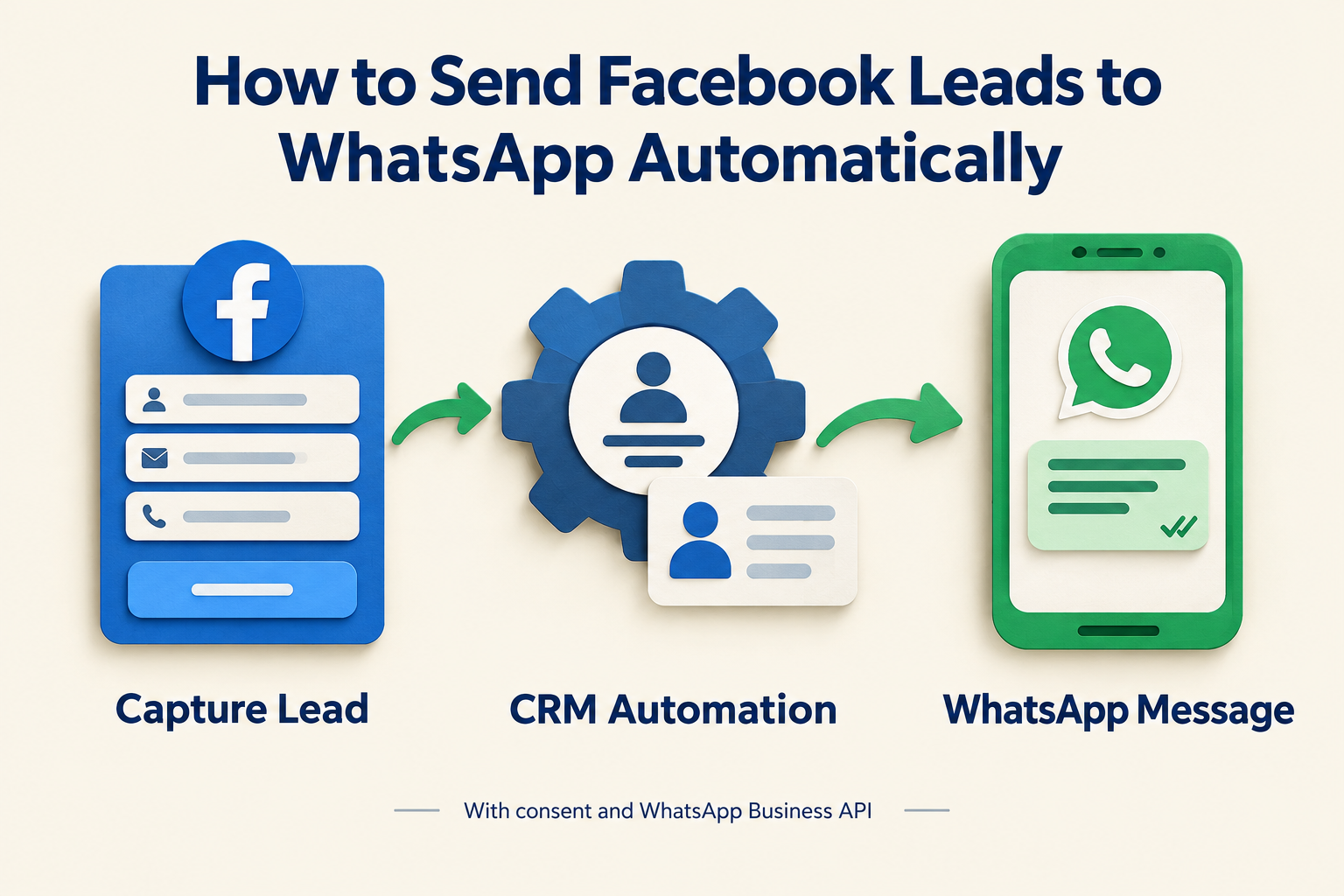
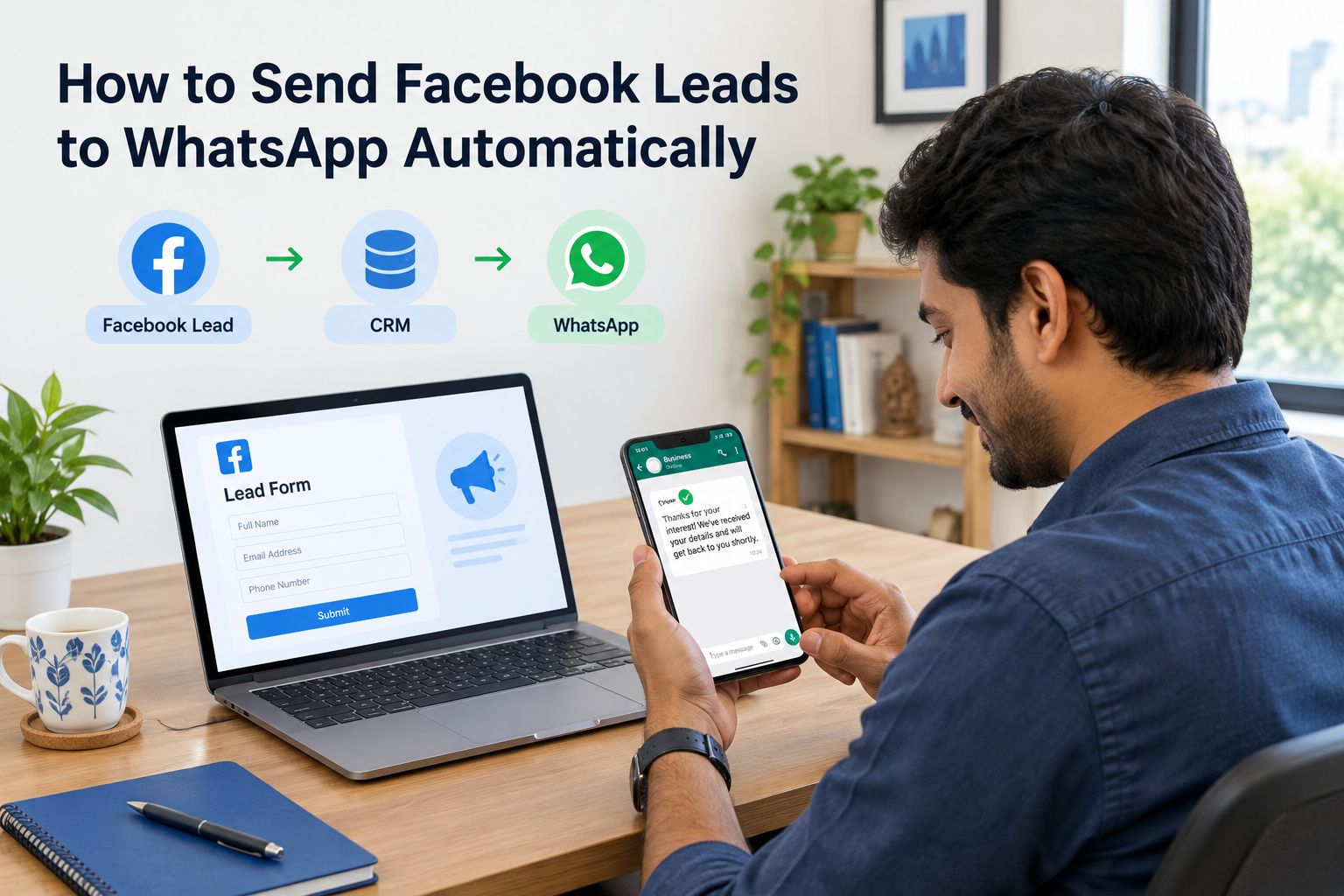
To send Facebook leads to WhatsApp automatically, connect your Facebook Lead Ads forms to a CRM and use the WhatsApp Business API to send an appropriate message when a new lead arrives.
The basic workflow is:
Facebook form submitted → Lead captured in CRM → Owner assigned → WhatsApp message sent → Personal follow-up
Here is how to set it up, including the difference between messaging a prospect and alerting your sales team.
What Does “Send Facebook Leads to WhatsApp” Mean?
Businesses usually mean one of two things.
Send a WhatsApp message to the prospect. Someone submits a Facebook form and receives an acknowledgement, a relevant question or information about the next step.
Send a WhatsApp alert to your team. A salesperson or manager receives a notification that a new enquiry needs attention.
These are separate actions with different recipients. Decide which you need before building the automation.
This guide focuses mainly on sending the prospect an automatic first message. You can add internal notifications alongside it.
What You Need Before You Start
For this workflow, prepare:
- A Facebook Page and the Instant Form used by your lead ad.
- Access to connect the relevant Page and retrieve its leads.
- A CRM or integration that captures Facebook form submissions.
- A connected WhatsApp Business API account for automated sending.
- An appropriate approved WhatsApp message template.
- A clear process for obtaining WhatsApp messaging permission.
- A salesperson responsible for handling replies.
Collect a usable phone number, including the country code, and make it clear how your business will contact the person.
Submitting a Facebook form should not be treated as blanket permission for unrelated promotional messages.
Can You Use Your Regular WhatsApp Account?
A manual WhatsApp shortcut and an automated WhatsApp integration work differently.
Ridhzo’s personal WhatsApp mode opens your own WhatsApp or WhatsApp Web with a personalised message prepared. You still send it manually.
For automatic sending, Ridhzo supports WhatsApp Business API mode through connections such as Watxio or Meta Cloud API.
This distinction matters when choosing a WhatsApp CRM: a button that opens a chat does not, by itself, automate the message.
How to Set Up Facebook-to-WhatsApp Automation in Ridhzo
1. Connect Your Facebook Lead Source
In Ridhzo, go to Settings → Lead Sources and choose Facebook / Instagram Lead Ads.
Connect your Facebook account and choose the relevant Page.
Start with one live enquiry form so you can test the complete process before extending it to other campaigns.
Submit a test enquiry and check that the lead record contains the information your team needs, including the name, phone number and enquiry details.
Ridhzo supports direct Facebook lead capture, so this workflow does not require downloading and uploading a CSV file.
2. Connect WhatsApp Business API Mode
Connect the supported WhatsApp Business API service you will use for sending messages.
Ridhzo’s documented connections include Watxio and Meta Cloud API. In API mode, it supports sending messages from inside the CRM, delivery and read receipts, and incoming replies on the lead timeline.
Confirm that the sending account is ready before enabling your new-lead automation.
WhatsApp messaging is billed directly through Meta or your provider. Account for those charges separately from your CRM subscription.
3. Prepare the First Message
In Settings → Templates, prepare a reusable WhatsApp message.
Ridhzo supports personalisation tokens such as {{first_name}} and custom field tokens. Only use fields that your form reliably collects, and check how the message reads when an optional answer is missing.
A useful first message should:
- Identify your business.
- Mention the enquiry.
- Explain the next step.
- Ask one easy question, if a reply is needed.
For example:
Hi {{first_name}}, thanks for asking about our weekend digital marketing course through Facebook. This is the admissions team at BrightPath Academy. Would you like the class schedule and fee details here?
Use an approved template where required. Ridhzo supports approved templates for messages outside WhatsApp’s 24-hour messaging window and free-text messages within it.
A Facebook form submission is separate from an incoming WhatsApp message. Do not assume that completing the form opens a WhatsApp conversation window.
4. Build the New-Lead Automation
Ridhzo uses a WHEN → IF → THEN automation structure.
A practical starting workflow is:
Make messaging permission part of your workflow design. If you collect permission through a form field, confirm that it reaches the lead record and that your automation conditions can check it before enabling automatic sending.
Do not send every new CRM lead the same Facebook welcome message. Restrict the workflow to the relevant source and enquiry type.
5. Give the Lead a Clear Owner
An automatic message can acknowledge the enquiry while the salesperson prepares to respond.
Someone still needs to answer questions, confirm requirements and agree on the next action.
Ridhzo supports automated assignment, including round-robin routing. It also supports mobile push notifications and optional WhatsApp new-lead alerts.
If you enable both customer messages and internal alerts, test the recipients carefully. The prospect should receive the welcome message; the team should receive the notification.
For a more detailed ownership workflow, see how to send Facebook leads directly to your sales team.
6. Test the Complete Journey
Before enabling the workflow across your campaigns, submit a test lead using a number you control and appropriate messaging permission.
Check the following in order:
- The enquiry appears in Ridhzo.
- The phone number and form answers are correct.
- The intended salesperson receives ownership.
- The correct WhatsApp template is sent to the test prospect.
- Personalisation displays correctly.
- Delivery status is visible.
- A reply appears on the lead timeline in API mode.
- The follow-up task reaches the right person.
Also test what happens when a phone number is missing or invalid, and when messaging permission is absent. Those enquiries should still have a clear handling process.
7. Add Follow-Ups After the First Message Works
Start with one useful acknowledgement and one follow-up task.
Once that process works reliably, consider a 7-day lead follow-up sequence suited to your service and the prospect’s expectations.
Ridhzo supports automated WhatsApp sending through sequences in Business API mode. Before using them, verify how your chosen setup handles replies, changed lead statuses and opt-out requests.
Avoid sending a generic reminder after the person has already booked, declined or asked you to stop.
Example: A Course Enquiry From Facebook
An education institute runs a Facebook lead ad for a weekend course.
The form collects the prospect’s name, phone number, preferred learning format and permission to receive relevant information on WhatsApp.
A practical workflow would be:
Capture: The form submission creates a lead in Ridhzo.
Assign: An automation assigns the enquiry to a counsellor.
Acknowledge: An approved WhatsApp template thanks the prospect and offers the course schedule.
Respond personally: The counsellor reviews the form answers and handles the reply.
Follow up: The counsellor records whether the next step is a counselling call, fee discussion or later callback.
Track: The team updates the lead’s stage as the enquiry progresses.
This setup gives the team a consistent starting process. Enrolment still depends on course fit, affordability and the conversation.
What If You Only Want WhatsApp Alerts for Your Team?
You may want to notify your sales team without messaging prospects automatically.
Ridhzo documents WhatsApp new-lead alerts in Business API mode, alongside mobile push notifications.
For this approach, configure the internal alert separately from the prospect-facing message. Test that the intended team member receives it, and keep sensitive lead information limited to what they need.
An alert also needs ownership. Sending a notification to several people without assigning responsibility can leave everyone assuming that someone else will respond.
Common Mistakes to Avoid
Counting an Automatic Message as a Personal Response
An acknowledgement confirms receipt. It does not tell you whether anyone has addressed the enquiry.
When measuring speed-to-lead, separate the automatic message from the first personal contact attempt and the first two-way conversation.
Sending a Generic Sales Pitch
A person asking for a consultation does not need a long message describing every service your business offers.
Reference their enquiry and make the next action simple.
Assuming a Sent Message Was Delivered
Review delivery status. An invalid phone number or messaging error can leave a lead waiting even when the automation has run.
Give the owner a process for reviewing unsuccessful sends.
Adding Too Many Follow-Ups Immediately
Several automatic messages can create pressure before the prospect has had time to respond.
Begin with a small, purposeful workflow and adjust it based on actual conversations.
Leaving Replies Unattended
Automation can start the exchange, but unanswered replies still damage the experience.
Decide who monitors incoming messages during business hours and what prospects should expect outside those hours.
What Should You Measure?
Review the workflow from capture through conversation:
- Capture completeness: Are expected form submissions appearing in the CRM?
- Message delivery: Are automated messages reaching valid numbers?
- First personal response time: How long does an assigned salesperson take to act?
- Reply rate: Are prospects responding to the opening message?
- Overdue follow-ups: Are promised next actions being missed?
- Sales progress: Do conversations move towards consultations, quotes or sales?
Some checks may require reviewing lead records and messaging activity together.
A read receipt alone does not establish buying intent. Track what happens after the message.
Frequently Asked Questions
Can Facebook lead forms send WhatsApp messages automatically?
For the workflow described here, a CRM captures the form submission and triggers a message through a connected WhatsApp Business API account. The form submission and the WhatsApp send are separate steps.
Can Ridhzo send WhatsApp messages automatically to Facebook leads?
Yes. Ridhzo supports Facebook lead capture and new-lead automations that send WhatsApp messages in Business API mode. Personal WhatsApp mode requires manual sending.
Do I need Zapier or Make?
Ridhzo supports direct Facebook Lead Ads capture, so Zapier or Make is not required for that connection. Automated WhatsApp sending still requires a supported Business API setup.
Does this work with click-to-WhatsApp ads?
This guide covers Facebook Instant Forms. Click-to-WhatsApp ads start a WhatsApp conversation instead of collecting an Instant Form submission. Confirm the capture and automation setup for that route separately.
Will incoming WhatsApp replies appear in Ridhzo?
In Business API mode, Ridhzo supports incoming replies on the lead timeline. Do not assume that personal WhatsApp mode provides the same connected conversation handling.
Is automatic WhatsApp messaging free?
Ridhzo’s personal WhatsApp mode supports manual messaging without an API setup. Automated sending uses Business API mode, with messaging charges billed through Meta or your provider.
Start With One Form and One Useful Message
Connect one Facebook lead form, prepare an appropriate WhatsApp template, assign an owner and test the journey through to a real reply.
Then add follow-ups based on how your team handles those conversations.
Explore Ridhzo to connect Facebook lead capture, WhatsApp API messaging and sales follow-ups in one workflow.